
1. Introduction to SpaceStudio#
1.1. Required Files#
1.2. Goal#
The aim of this tutorial is to familiarize users with the SpaceStudio development environment to design, simulate and debug a system. The application is a JPEG decoder, whose dataflow sequence is shown in Figure 1.1.
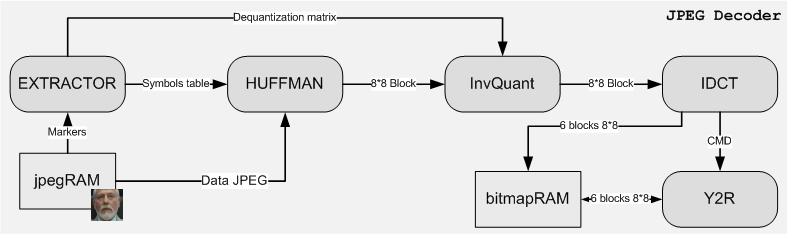
Figure 1.1 Data flow for JPEG Decoding#
1.3. Target Processors#
You will be working with a microblaze which is a 32-bit RISC processor. The microblaze connects to an AMBA AXI (data port) and LMB (data and instruction port) buses. The AMBA AXI serves to communicate with the peripherals and the other modules (e.g., over 2 to 3 cycles), while the LMB (Local Memory Bus) bus serves to read instructions and data directly from BRAM memory (e.g., in 1 cycle). Finally, you will see how a single task (module) runs on one or several processors, perhaps with the initial RTOS (µC/OS II) replaced by a bare-metal pseudo OS, to see how the application can be accelerated.
1.4. Architecture editor#
The principal view of SpaceStudio is the Architecture editor. This editor is a block design graphical interface. The Architecture editor is completely interactive: it is therefore possible to view the system, the connections and quickly configure the boxes as required. In addition, it offers more flexibility on architectural choices (i.e., connect a master interface to a free high-speed interface of the Zynq UltraScale+). This editor is familiar to system designers since it shares the same principle as downstream EDA tools (i.e., MathWorks Simulink, Xilinx Vivado, etc).
Moreover, several diagrams can be open at once. This enables a system designer to work on one architecture while another is building.
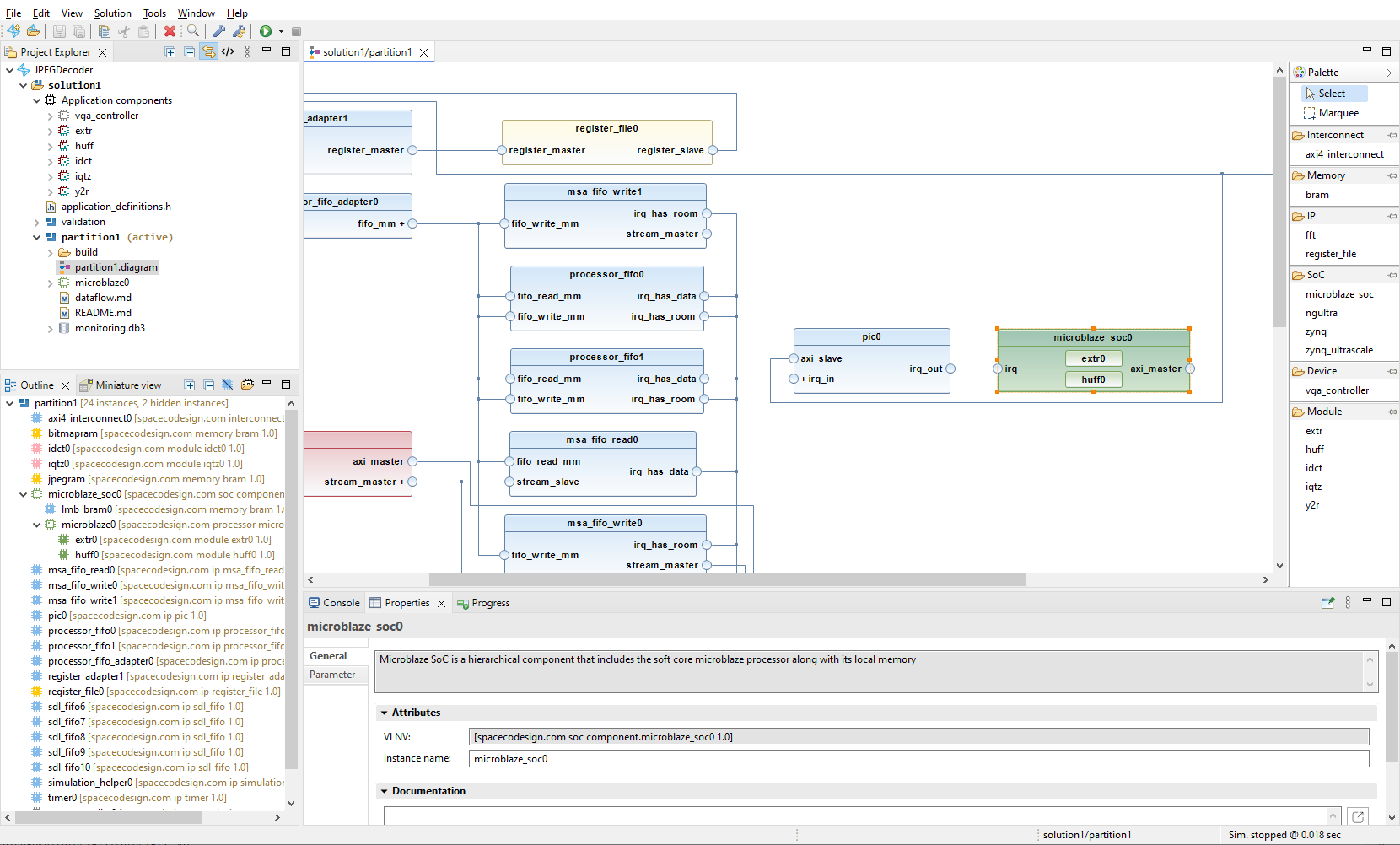
Figure 1.2 SpaceStudio#
1.4.1. Color scheme#
Blocks in the SpaceStudio diagram are colored according to their type, as follows:
Color |
Description |
Example |
|---|---|---|
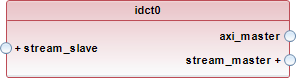
Red |
Module mapped to hardware |
|
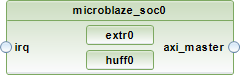
Green |
Processor or module mapped to software |
|
Gray |
User-defined device |
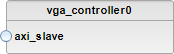
|
Blue |
Component instance added automatically by SpaceStudio |
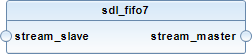
|
Yellow |
Component instance added manually by the user that is neither an application component or a processor |
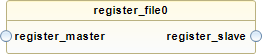
|
1.4.2. Action on double-click#
Double-clicking on a component instance will perform an action depending on the type of that instance:
For an application component instance, it will open the related
.cppfile in the editor.For a hierarchical component instance, it will expand/collapse the component instance.
For a component instance with several ports of the same kind, it will expand/collapse all ports.
1.5. JPEG Decoder#
To get started, you must first obtain a copy of the reference (initial) project. Once you have obtained the reference project, expand the zip file in a directory on a path that contains only unaccented characters without spaces. This directory will be denoted by the token %PROJECT_ROOT%.
To open the project, double-click the file JPEGDecoder.spacestudio from %PROJECT_ROOT%.
1.5.1. Functional specification#
In SpaceStudio, you can define two types of design specifications: 1) functional specifications for algorithms, and 2) system specifications for architectural details.
The primary objective of a functional specification is to validate the algorithm’s functionality—ensuring it performs as intended.
An architecture is an assembly of modules (i.e., pieces of C/C++ code holding the previously partitioned algorithm) together with library components (buses, memories, etc.) that connect these blocks to one another.
A functional specification is an architecture where all modules are mapped in hardware. SpaceStudio provides all the interconnects so the designers focus on the algorithm and architecture sizing.
To create an architecture:
Click on Solution
In the dropdown menu, click on New Architecture…
Enter
validationfor the name of the architecture and then click on OK
When a new architecture is created, the diagram opens. The diagram editor is the centerpiece of SpaceStudio and is used to instantiate/remove components, configure instances and perform hardware/software mapping.
To configure the architecture:
From the newly opened diagram, use the right pane to instantiate the following components:
extr,huff,idct,iqtz,y2randvga_controller(i.e., application)register_file
Click on the
vga_controller, go at the bottom, click on Properties tab and Parameter tab. Then, assign an addressable range of 1MB (rather than 4KB)Also add 2
braminstances with the following properties (you will rename by clicking on Properties tab and on General tab, and by renaming in Instance_name):Instance
Memory size
jpegram1MB
bitmapram1MB
Preload the
jpegrammemory with an initial JPEG image. For the Memory initialization, click on Browse…, navigate to the folder%PROJECT_ROOT%\importand select the filejpeg_init.json. Click OK.
To execute this architecture, click the run icon  in the toolbar to launch the simulation.
Note
You may see an error message about a failed up-to-date check. This just means that the current output doesn’t match the latest version of the architecture. This is expected because the architecture hasn’t been built yet. To continue compiling, simply answer Yes.
To determine that the simulation is running correctly, you can check the progress messages printed in the console window, at the bottom of the GUI. The VGAController component will save the decoded JPEG inside the project directory, this is used to validate the decoded image. If the verbose parameter of the VGAController is set to true, every decoded tile (MCU) will be saved independently in the decoder_frames folder. The progress message output should appear like the following:
 -=-=-=-=-=-=-=-=-=-=-=-=-=-=-=-=-=-=-=-=-=-=-=-=-=-=-=-=-=-=-=-=
Space Codesign Systems Inc.
Copyright 2005-2024. All rights reserved
https://www.spacecodesign.com
SpaceStudio 4.4.0
-=-=-=-=-=-=-=-=-=-=-=-=-=-=-=-=-=-=-=-=-=-=-=-=-=-=-=-=-=-=-=-=
Starting simulation.
EXTR:JPEG1

Info: /OSCI/SystemC: Simulation stopped by user.

Simulation has ended @0.00073449 s
Simulation wall clock time: 0 seconds.
If you don’t see these messages, be sure to check that you had correctly followed all of the previous steps.
Note that Simulation has ended indicates the simulated execution time for processing one image of 128 x 128 pixels, here 0.00073449 s. In other words, this architecture could decode roughly 1361 images per second continuously.
As for Simulation wall clock time, it indicates the real-world duration of the simulation, in second.
1.5.2. System specification (architecture details)#
In this section, we will create an architecture that includes a processor. You can refine the solution for a more accurate timed design and test your application on various architectures.
Click on Solution
In the dropdown menu, click on New Architecture…
We will reuse the previous architecture to jumpstart the new architecture.
Type
partition1as the architecture nameCheck the option Based on existing architecture
Choose
validationas the existing architecture
Click on OK
1.5.3. Addition of a microblaze and moving extr and huff from hardware to software#
The role of extr is to read the header of the JPEG image. Since the format may evolve, extr may be updated in the future. Also, as huff is tightly connected to extr (Figure 1.1), we will assign extr and huff to the processor (SW partition), while the rest will stay in hardware. Therefore, using the architecture partition1, follow these instructions:
Open the
partition1architecture diagramFrom the Project Explorer, expand the
partition1Double-click on the diagram named
partition1.diagramto open it
From the diagram :
From the right pane, instantiate the
microblaze_soc(by dragging-and-dropping)Increase the memory size of the microblaze for the software code to 128KB by clicking on the Properties tab and Parameter tab, and by modifying the Memory_size
Move the module instances
huffandextr(from hardware) to themicroblaze_soc(to software). This is achieved by dragging the module instance design block to themicroblaze_socdesign block.
To execute this architecture, click the run icon in the toolbar to launch the simulation.
Note
SpaceStudio examines the application’s code to figure out how it needs to communicate. It then adjusts the platform’s hardware (adding, removing, or changing parts) to make sure the application works as intended.
It should take around 0.0186641 seconds to decode one image (Simulation has ended), or about 54 images decoded per second continuously. Compared to the fully hardware validation architecture, decoding is roughly 25 times slower: extr and huff now run as software tasks on the MicroBlaze instead of as dedicated hardware.
As an exercise, create a third architecture based on partition1 and apply the following two changes, measuring the simulated time after each one so you can attribute the gain to the right change:
Move
huffback to hardware, leaving onlyextrin software.Change the operating system of the microblaze from uC/OS-II to Baremetal.
You should see a significant acceleration in decoding. Why?
Tip
Consider both where the work is executed (a dedicated hardware module versus instructions on a 32-bit RISC processor) and what the processor spends its time on besides the algorithm itself (task scheduling and context switches under an RTOS).
1.5.4. Profiling#
In this section, we will profile the application:
Click the profile icon
 from the toolbar
In the popup, select Launch in a simulator
Important
It is important to let the simulation finish on its own to ensure that it saves the data created for performance profiling. Once the simulation finishes, a monitoring.db3 node will be added to your Project Explorer.
1.5.4.1. Viewing processor load#
Now that the profiling database file is generated, manually expand monitoring.db3 > Processor load > microblaze0. Now double-click the core0 node to open the profiling results for the Microblaze’s core 0. An example output is represented in Figure 1.3.
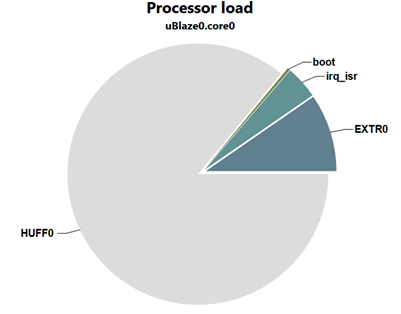
Figure 1.3 Task Profile for microblaze0#
Hovering over any of the pie chart’s slices will reveal a textbox displaying the proportion of execution time of that slice more precisely.
1.5.5. Debugging#
In this section, we will perform hardware/software co-debugging—simultaneously testing and troubleshooting the application code alongside the underlying hardware components to ensure they interact correctly.
During this exercise, we will examine the communication between a hardware module and a software module. More precisely, the communication between the huff and iqtz modules. For this section, we will continue working with the architecture partition1 created in the previous section. (If that architecture does not exist, you will need to create it using the previous instructions.)
Before starting, make sure the partition1 diagram is opened.
Next, you must execute the simulation with the debug feature enabled:
Click the debug icon
 from the toolbar
In the popup, select Launch in a simulator
Note
A pop-up window titled Confirm Perspective Switch will appear, asking for approval to change the window layout on SpaceStudio. Select Switch to change to the debugging perspective.
Important
SpaceStudio generates an optimized version of software modules which include low-level drivers for communication with the system. It is the generated files that are compiled and suitable for debugging. For instance, SpaceStudio is not debugging the huff.cpp file but a compiled file that will be typically named huff0.cpp. These generated source codes are located under the build node in the project explorer. Editing the generated files will not change the original file.
We will focus on a blocking message-passing communication between modules huff and iqtz, when the huff module writes a block of data to iqtz.
At the start, the debugger perspective only shows the hardware portion of your design architecture as shown in Figure 1.4. At this point, you can only insert a breakpoint into a hardware-mapped module or user-defined device.
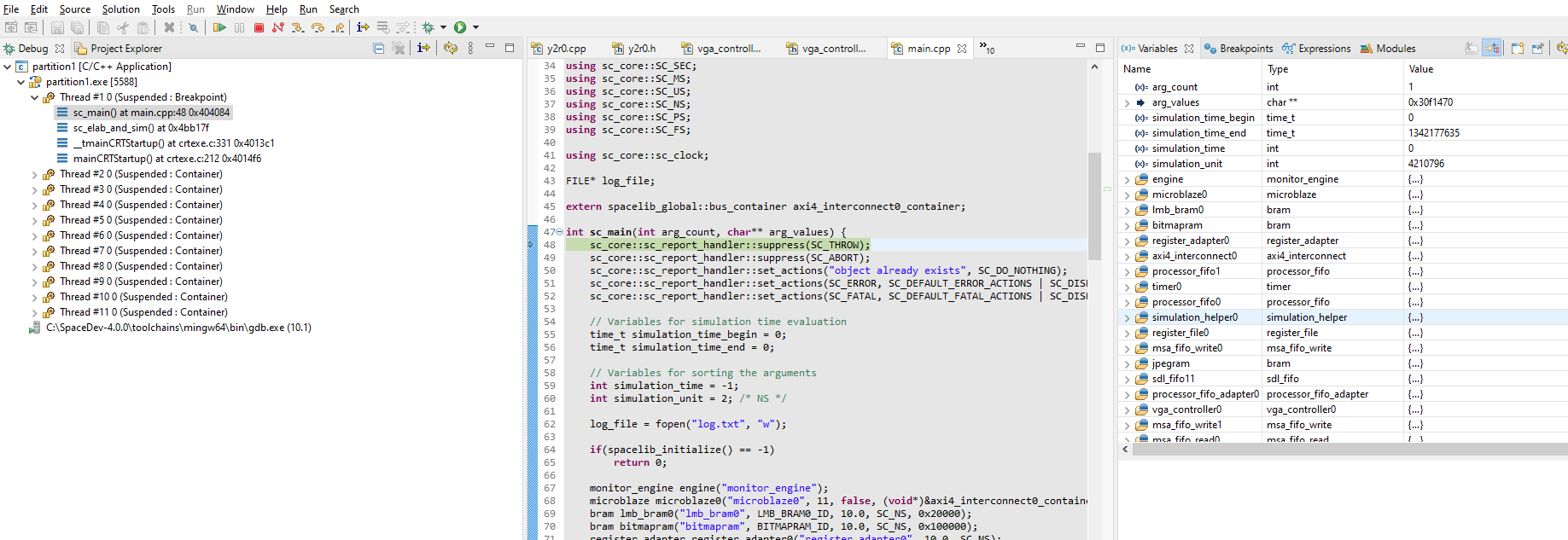
Figure 1.4 Hardware breakpoint hit#
To insert a breakpoint into the iqtz module:
From the Project Explorer, navigate to
partition1->build->module->iqtz0Double-click
iqtz0.cppto open it.Insert a breakpoint on the
StreamReadinstruction near line 136 (as shown in Figure 1.5), with a double left mouse-click.
Tip
If the editor does not show line numbers, right-click the grey margin on the left of the editor and select Preferences, then search for Show line numbers, tick the checkbox, apply and close.
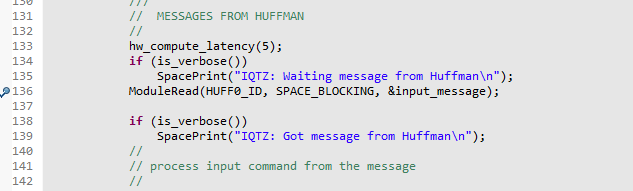
Figure 1.5 iqtz0 breakpoint#
Next, start the hardware simulation by clicking on the  button, i.e., Resume (F8). All the components will activate including the MicroBlaze processor model, which launches the processing of the software modules.
The debug console window will change, as seen in Figure 1.6, when the GDB server appears for the software execution.
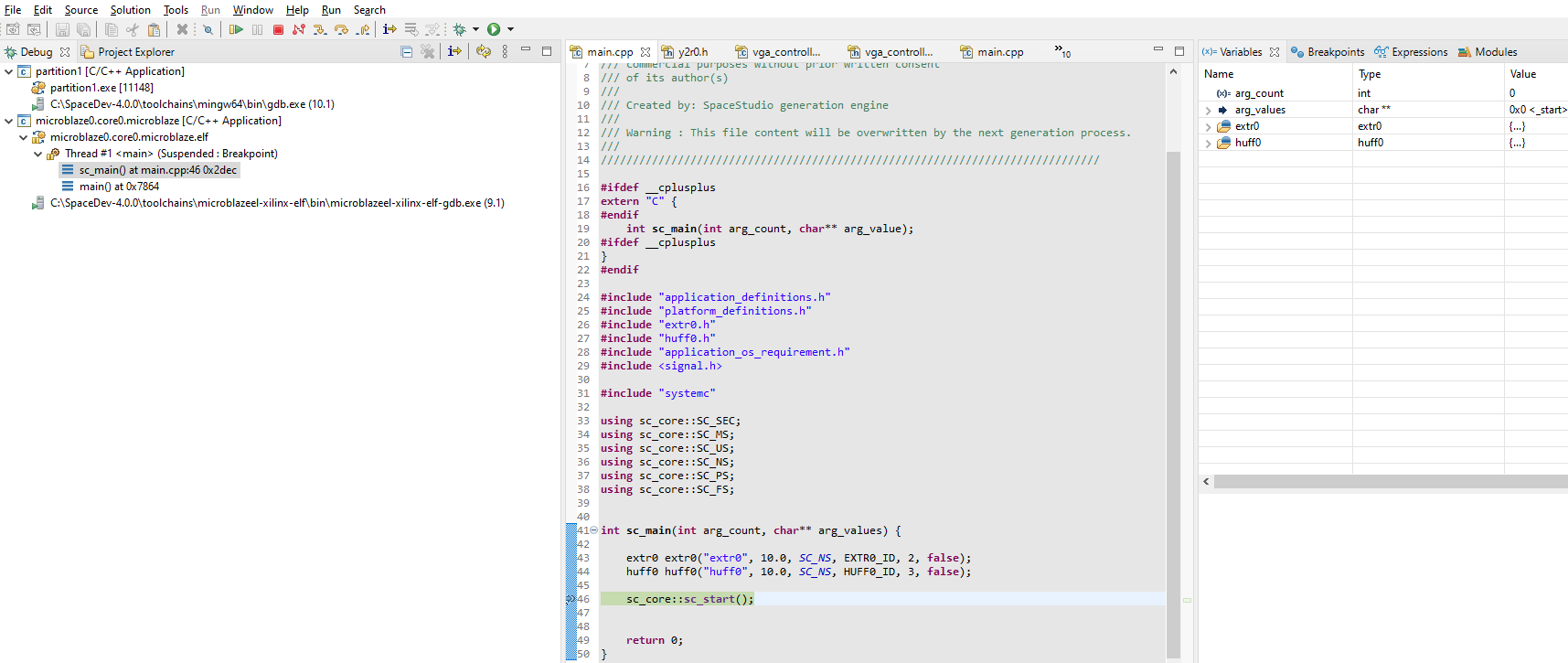
Figure 1.6 Software breakpoint hit#
At this point, you can insert a breakpoint into a software-mapped module.
To insert a breakpoint into the huff module:
From the Project Explorer, navigate to
partition1->microblaze0->build->module->huff0Double-click
huff0.cppto open it.Insert a breakpoint on the
StreamWriteinstruction near line 367 (as shown in Figure 1.7), with a double left mouse-click. This breakpoint will be activated when the software execution reaches that instruction.
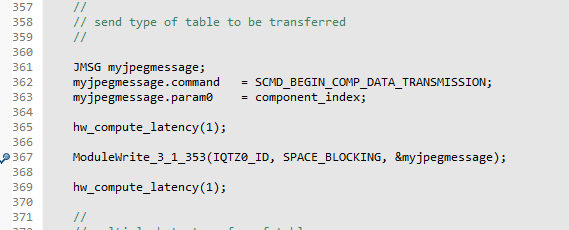
Figure 1.7 huff0 breakpoint#
Right now, there is one hardware breakpoint and one software breakpoint on the two sides of the same blocking communication. We should thus expect a kind of “ping pong” mechanism when stepping through the debugging session.
At this point, the hardware debugger is running while the software debugger is suspended. To resume the software debugger, click on the button to resume the whole simulation. The control of the simulation should then pass to the hardware debug window.
It is very important to understand that one window is active at a time (software or hardware). You can thus advance in the simulation (e.g., step, continue or next) one window at a time (e.g., hardware) while the other is blocked (e.g., software). Whenever you arrive at a communication by StreamRead (or StreamWrite), the simulation may change windows. For example, if iqtz performs a blocking StreamRead for data not yet received from huff, it will wait until a matching StreamWrite by huff is completed before continuing. As a result, if iqtz is executing in hardware and it becomes blocked by a blocking StreamRead, the hardware window becomes blocked as the software window takes over to carry out the communication (i.e., the transfer of data).
At this moment, your simulation should be at the iqtz breakpoint (hardware window). Click on the button and you should see control pass to huff (software window). Do it again , and you should arrive at the huff breakpoint. Then click again on and you will return to the iqtz breakpoint (hardware window). And so on.
To summarize, each time that the thread huff executes (as a task on µC/OS II) the software module sets itself up to send data to the hardware module. By clicking on the button, that has the effect of unblocking the hardware module once it receives its data. You can then observe that the communication is blocking and that the execution of StreamWrite has the effect of unblocking the module that carries out reading the data using StreamRead.
This example illustrates how hardware/software co-debugging can be used to investigate the interactions between hardware and software modules. In the embedded systems industry, this approach is often called hardware/software co-simulation. To exit the simulation, you can remove all breakpoints and resume the simulation, or you can simply stop the debugging session by clicking on  .
.